Fulfilling an Order at Your Store: What are the steps? (Impact Transactional)
You will probably receive the following types of orders from your online Impact transactional catalog:
- Valid orders
- Fraudulent orders
- Test orders where someone or a bot is experimenting and/or filling in random text in the checkout form
Order Handling Process
When each order is submitted by a customer in your online catalog, the catalog will email a notification message to a predetermined email address to inform the merchant (you) about the new order.
When you, as the dealer, receive such order notifications, you need to login to your catalog Impact (Elastic Path) Admin area to review the order.
Find the order in the "Orders / Orders" section.
Click the Customer name beside the desired order to view the order's information.
Review the order information to determine if you will accept or reject this order. Consider all of the information provided, such as whether it looks like someone just entered random or bogus text in the checkout form for name (e.g. "Mickey Mouse"), address, etc., has the order been paid by credit card or other valid payment method, etc. In other words, does it look like a valid order that you wish to accept?
Rejected Orders
For orders that you decide to reject, refer to the "Cancel or Refund an Order" article for details.
Accepted Orders
The products (SKUs) that the customer has requested are listed under the "Order Items" heading.
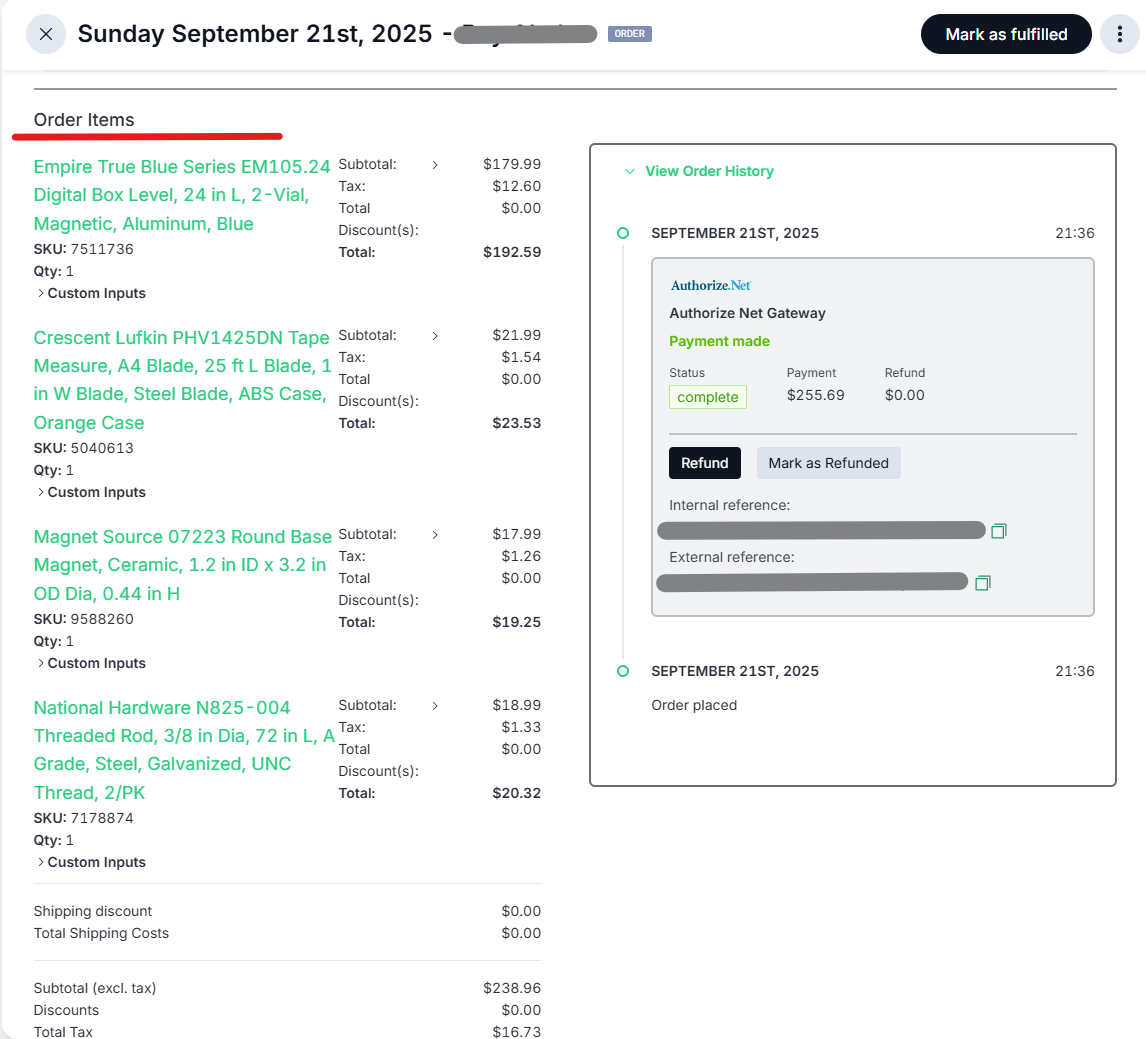
You will need to determine if you will fulfill this order from inventory that you already have in stock, or if you need to order any of these products from the vendor/supplier (e.g. from Orgill).
If you need to order any products from a vendor/supplier, you will need to use your normal ordering mechanism before you can fully process this order.
Once you have all of the ordered products on hand, then check to see if the customer selected in-store pickup or shipping.
For in-store pickup, use the customer's email address in the order information to inform them when the order is ready for pickup.
For shipping, package the order for shipping according to the courier's/shipper's requirements. When ready to ship, either drop off the order at your local courier/shipper outlet or if the courier/shipper periodically picks up at your store, queue this order for such a pickup according to your internal processes.
Only if shipping, once the order has been shipped, update the order status to Fulfilled as follows:
- Find the order and open up its details
- Using the "..." menu in the top-right corner of the order details, select the "Mark as fulfilled" option from the drop-down list. This will generate an email to the customer's email address saying that the order has been shipped.
Note: If you determine that you cannot fulfill the order and need to cancel it, then refer to the "Cancel or Refund an Order" article for details.

Warning
Although the Impact system sends an email notification to the merchant for each new order, it is best NOT to fulfill the order solely from the email message. You should log into the admin system, review all order details, fulfill the order for pick-up or shipping, and change its status when appropriate (e.g., fulfilled, canceled).